
The following topic lists and describes in basic terms concepts that are shared by CygNet groups, the Group Service (GRP), and the Group Manager utility. If you are interested in learning about a concept that is not defined here or if you are interested in what a concept means in a particular context, search for it in a specific Groups topic.
See the following subsections below for more information:
In a CygNet SCADA context, a group is a collection of facilities organized into hierarchies.
Facilities are included in hierarchies according to user-selected facility and device attributes. Attributes can be defined in a way that makes sense in your organization. Specific attributes can then be chosen to identify levels in user-defined hierarchies. Hierarchies enable the collection and organization of information specific to the facilities and devices to which those attributes belong.
Group hierarchies provide a useful way to organize, navigate, and display select data from within a CygNet system that might contain very large amounts of data. They can be used to sort facilities in reports and on CygNet Studio and CygNet Vision screens by using facility attributes to capture only the information relevant to your organization. For instance, instead of performing a flat manual search of all your facilities for a subset of information, you can create a group hierarchy that enables selective searches for relevant facility attributes, like the remote device IDs for a specific operator at a specific location.
Groups can be imagined vertically or horizontally. A group imagined vertically might be a grouping of all associated nodes in a single hierarchy from leaf nodes all the way to the hierarchy root. A group imagined horizontally might be a grouping of all associated leaf nodes using a certain attribute type, like meter description.
Example
Imagine you have a catalog of cars. All have numerous attributes listed in tables in their respective chapters. Attributes include vehicle name (Yugo, Rambler, and so forth), vehicle type (sedan, hatchback, and so forth), color (red, green, and so forth), and year (1985, 1986, and so forth). Cars in this catalog could be thought of in a vertical way, as all cars of a certain vehicle type of a certain year, or horizontally as all cars of a vehicle name.
For a broader overview, see Groups.
A hierarchy defines the prioritized relationship between its constituent nodes.
The component hierarchy root is the base of all navigation hierarchies and components in a component hierarchy. Its primary value is as a container for hierarchies and constituent components. If you choose to use rules only instead of components, its value is unimportant. More than one component hierarchy root can be added to a GRP to suit different organizational needs. For instance, you might want to create one component hierarchy root to include a class of components and hierarchies that are valuable to Accounting. But you might then create another component hierarchy root to include a class of components and hierarchies that are valuable to Operations.
Multiple navigation hierarchies can be created for a single component root hierarchy. A navigation hierarchy can have numerous views; views enable a user to define multiple ways by which to filter and display rules or components. Each view is made up of levels, which define the relative prioritization of nodes within a view. Up to 10 levels per view can be specified.
Once created, you cannot move nodes up or down the hierarchical tree in the Group Manager utility. If nodes are in an incorrect order, you must delete them in the Group Manager utility and add them in the correct order. You can, however, rename hierarchies, views, and levels.
Group hierarchies that have been built and are deleted from the Group Manager utility are automatically deleted from the GRP. If you delete a node from the GRP, that node is also automatically deleted from the Group Manager utility.
Example
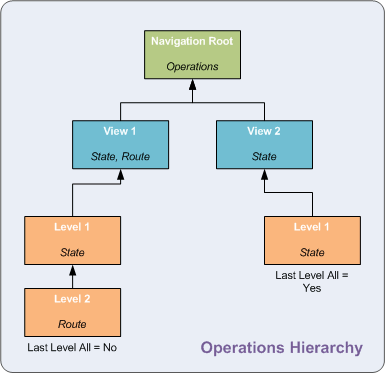
Below, the name of the hierarchy is "Operations" and it contains two views. In View 1, the first-level node is "State" and the second-level node is "Route." View 2 consists of the "State" level only.
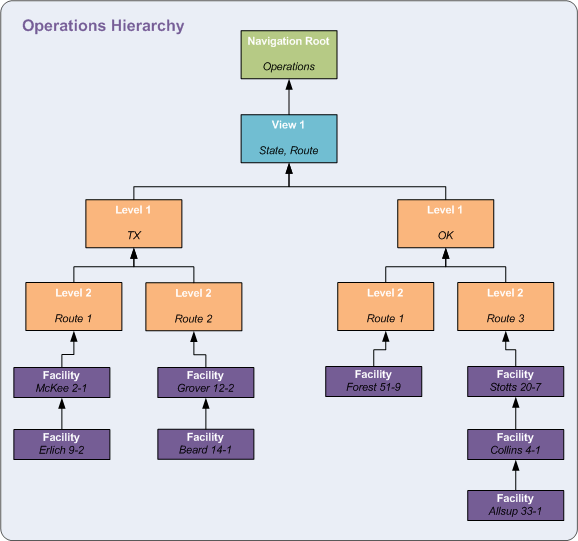
Results of View 1 are shown below. Each facility is listed under only one branch because one facility attribute is now subordinate to the other. "McKee 2-1" is on "Route 1" and is located in "TX"; it is listed only under the "TX" branch even though the "OK" branch also has a "Route 1."
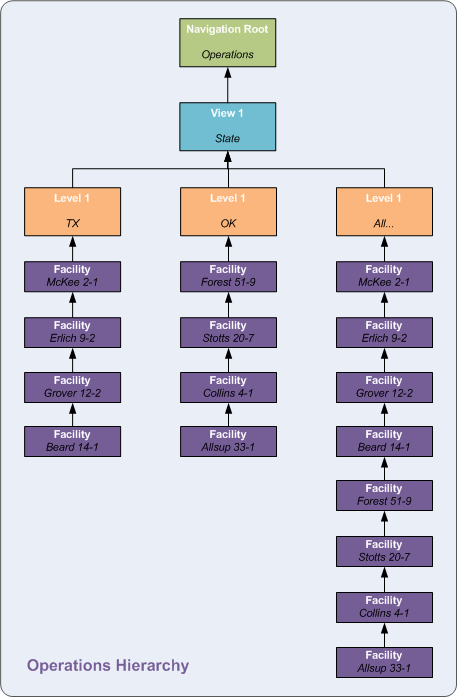
Results of View 2 are shown below. The name of the navigation hierarchy does not change because this is only a different view within the same hierarchy. The view consists of only a single level, the "State" level, with no subordinated levels. Since Last Level All was enabled for View 2, View 2 displays the facilities of both the "TX" and the "OK" levels. The Last Level All option only applies to the last level in a hierarchy. Because this view has only one level, "All…" appears at Level 1.
For more information, see Nodes in a Tree View.
A node is an individual subunit of a hierarchy. It is a high-level abstraction, representing any subunit in a hierarchy. Displayed in a tree view, group hierarchy elements like views and levels are both nodes. So, too, are components. Each of these nodes has a set of unique properties (including reference attributes) that can be viewed using the GRP editors or in various ways using the Group Manager utility.
Once created, you cannot move nodes up or down the hierarchical tree in the Group Manager utility. If nodes are in an incorrect order, you must delete them in the Group Manager utility and add them in the correct order. You can, however, rename hierarchies, views, and levels.
For more information, see Group Nodes.
Each unique hierarchy is called a view because it is one possible perspective or view of a collection of defined attributes. Multiple views may be created within a navigation hierarchy to provide different methods of filtering and displaying relevant data. Additionally, you can link views together, making one stand-alone view a child view of another stand-alone view.
Example
Your setup might require the viewing of divisions, fields, stations, meters, and compressors as well as routes and technicians. You can set up a view that displays divisions, fields, stations, meters, and compressors, and another that displays routes and meters only, and yet another that displays technicians and stations only.
You could also organize data so that Accounting could sort facilities differently from Operations. Maybe Accounting is interested in fields, RTU types, and RTU product IDs for inventory purposes, but Operations is more interested in fields, specific RTU locations, and responsible operators for safety purposes. You could create a view for each department; the views would display data in a way useful to the respective department by means of a CygNet Studio or CygNet Vision screen or by means of a report.
There are two types of views: rule-based views and component-based views:
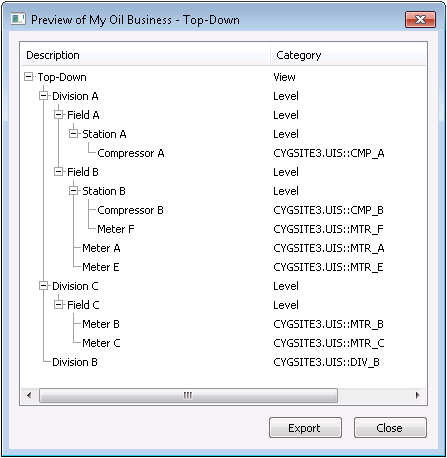
A useful feature of a view in the CygNet Group Hierarchy Manager utility is the ability to preview a view. This helps you visualize exactly what attributes (and what data) will be included in an as-built hierarchy. This is useful for double-checking your work as you create hierarchies to ensure that you have included all relevant nodes.
Example
The following screen shot is an example of a preview:
For more information, see Creating a Group Hierarchy, Defining Rules, and Defining Components.
A level represents a prioritized node within a view. For instance, a view with 5 levels has levels prioritized in descending order from Hierarchy Level = "1" down to Hierarchy Level = "5." A level can be defined by a rule or rules, or by a component. Both rules and components cannot exist within the same view or level, but a navigation hierarchy can support both rule-based and component-based levels. If a level is component based, a child component generates along with the parent level. Once the component level is added, you can link other existing components to the same level.
For more information, see Creating a Group Hierarchy, Defining Rules, and Defining Components.
An attribute is a characteristic of a thing. In a groups context, there are 2 important classes of attributes:
Facility and device attributes make up the class of attributes you most need to be familiar with to use groups because they enable the creation of hierarchies and collection of data by means of those hierarchies. A knowledge of GRP node attributes and their use might be useful to you, but it is not essential to the creation and use of groups and group hierarchies.
Example
Imagine you have a catalog of cars. All have numerous attributes listed in tables in their respective chapters. Attributes include vehicle name (Yugo, Rambler, and so forth), vehicle type (sedan, hatchback, and so forth), color (red, green, and so forth), and year (1985, 1986, and so forth). Instead of using a flat search to manually look up all attributes of a specific vehicle, you might want to view only available vehicles of a specific vehicle type for a specific year. Or you might find it useful to organize all of these attributes into a single logical hierarchy so that you can "drill down" incrementally to find the exact car you are looking for.
Important: Although hierarchies can be edited within the GRP service using GRP editors, this is strongly discouraged. Instead, use the Group Manager utility to create and edit group hierarchies. See Group Manager Utility for more information.
A rule is an abstract guideline for inclusion (or exclusion) of facility attributes into a hierarchy. These attributes are parts of facilities, which are potential data sources. A rule can be defined once that includes multiple desired attributes. Rules can be combined using AND and OR, and they can be nested within other rules. For example, ((a OR b OR c) AND d).
A rule has two primary purposes:
Rules are defined in views and levels. Views are defined as either rule based or component based. Actual rules are defined at each level in a view. The rule-based level also enables the linking of child views, which are preexisting and independent views that you can subordinate to another view.
For more information, see Defining Rules.
Important: Although hierarchies can be edited within the GRP service using GRP editors, this is strongly discouraged. Instead, use the Group Manager utility to create and edit group hierarchies. See Group Manager Utility for more information.
A component is a node that defines the inclusion of a single facility or device attribute into a hierarchy. These attributes are parts of facilities or devices, which are potential data sources. Components only enable the inclusion of a single attribute at a time into a hierarchy, which is a significant difference from rules.
A component has two primary purposes:
Components are defined under the Components node, then linked as a level into a hierarchy.
Example
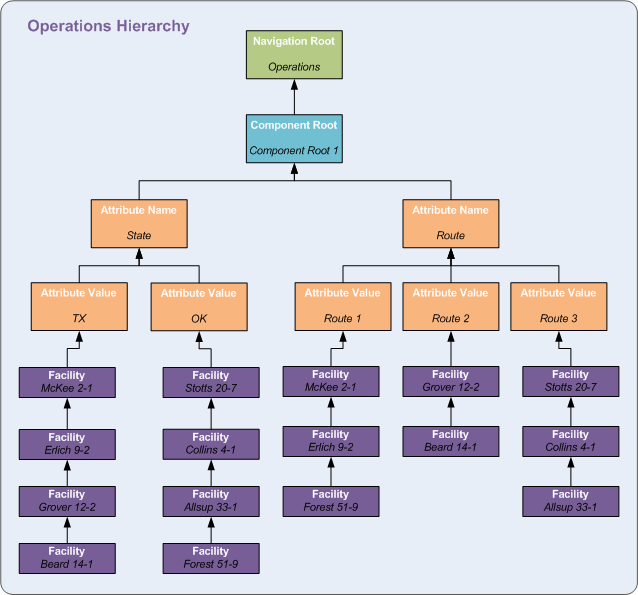
In the diagram below, two components have been defined for inclusion into the hierarchy. They are State and Route. Each references State and Route attributes in the Facility Service (FAC). Each of these attributes was also assigned a value in the FAC. The values are "TX" and "OK" for State and "Route 1," "Route 2," and "Route 3" for Route.
When the hierarchy is built in the Group Manager utility, the utility groups all facilities that meet the criteria of the State and Route components according to the defined hierarchy.
By default, a component list only includes facilities that have a value assigned to the attribute. However, you can select to include facilities that have blank values. In such cases, another placeholder labeled (blank) is included at the attribute value level.
For more information, see Defining Components.
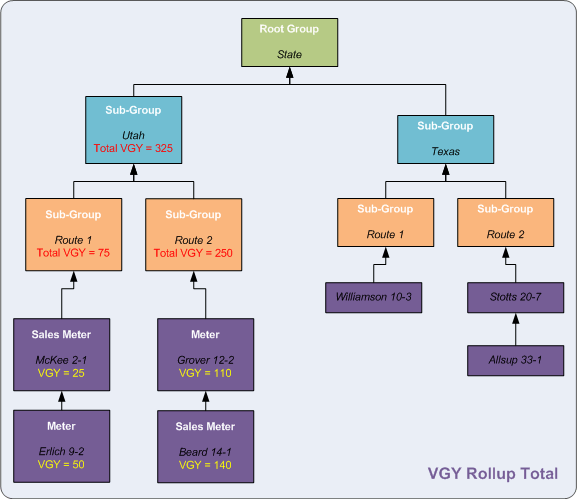
Group rollups enable the "rolling up" or aggregation of information from the leaf nodes of a hierarchy to designated summary root- and sub-group nodes in the Group Service (GRP). When a rollup request is issued, it moves down the hierarchy to all relevant leaf nodes (facilities) searching for specified uniform data codes (UDCs), then rolls back up the hierarchy with the current value collected from the leaf nodes' specified current value service. This information is used to calculate totals, averages, and alarms.
Example
In the following example, rollup HyperPoints have been defined for three nodes: Utah, Route 1, and Route 2. In this case, these rollup HyperPoints calculate the total values from the purple leaf nodes (facilities) for the UDC called VGY. VGY means volume gas yesterday. So, values collected by the rollup HyperPoints represent totals for the previous day's gas volume. Notice that, in this case, aggregates compound at logical positions as they move higher up the hierarchy.
For more information, see Group Rollups.
|
|
|

